A proper dual monitor ergonomic setup positions your main monitor directly in front of you at eye level, with the secondary monitor parallel and adjacent to minimize neck movement. Keep both screens 20-40 inches away and angled slightly inward for optimal viewing comfort.
Setting up two monitors correctly can transform your productivity while protecting your long-term health. As someone who has spent years optimizing workstations for both programming work and content creation at MadaraDigital, I’ve learned that getting your dual monitor ergonomic positioning right is crucial for preventing neck strain, eye fatigue, and shoulder tension.
Whether you’re a remote worker juggling multiple applications, a content creator managing timelines and references simultaneously, or a tech enthusiast maximizing screen real estate, this comprehensive guide will help you create the perfect two monitor desk layout that enhances both productivity and comfort. From optimal positioning techniques to advanced mounting solutions, we’ll cover everything you need to know about ergonomic dual monitor setup.
Before starting, we’ve got some other related setups articles about home office setups, take a look:
Quick Tips for Dual Monitor Ergonomic Success
Whatever your dual monitor situation, here are some easy tips anyone can use to make their ergonomic dual monitor setup more comfortable and productive. For more in-depth details, refer to our comprehensive guides on ergonomic workstation setups and cable management organization. It’s not surprising that many people struggle with dual monitor positioning because improper setup can lead to serious strain and discomfort.
Primary Monitor Positioning: Your main monitor should be positioned directly in front of your body, not off to one side. This is the screen you’ll use most frequently, so it deserves the prime real estate in your field of vision.
Equal Height Alignment: Both monitors should be at the same height to prevent neck strain when switching between screens. Position the main monitor squarely in front of your body and at eye level, and make sure your secondary monitor is at a parallel height to the main display.
Minimize Neck Movement: Place the screens as close to one another as possible to reduce neck turning and provide a more seamless flow. The gap between monitors should be minimal to create a seamless visual experience.
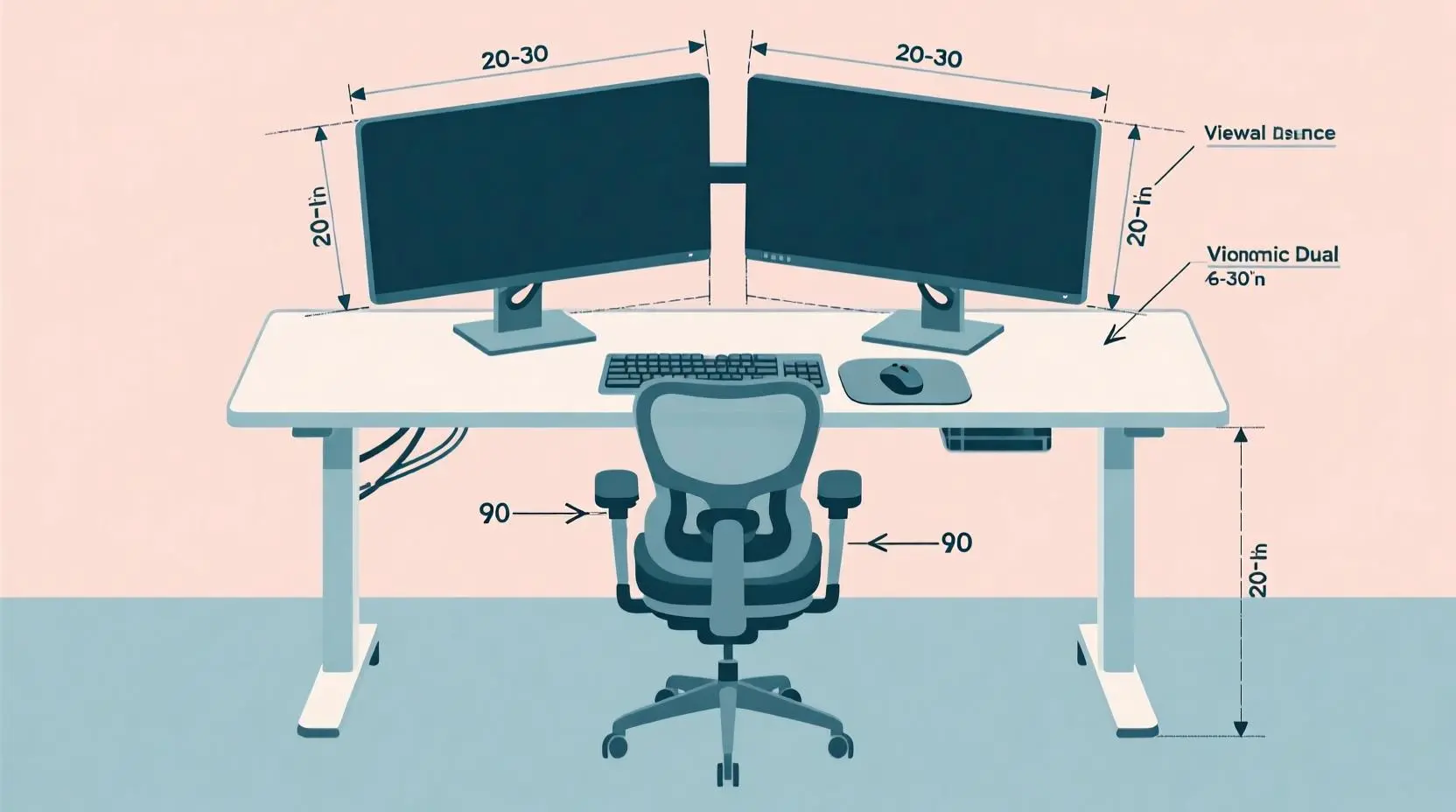
Proper Viewing Distance: Place the monitors 20-40 inches or about an arm’s length from your body. This distance allows you to see both screens comfortably without straining your eyes or leaning forward.
Understanding Dual Monitor Ergonomic Fundamentals
The Science Behind Proper Positioning
Ergonomic positioning isn’t just about comfort—it’s about preventing long-term musculoskeletal disorders that can develop from hours of poor posture. When you constantly turn your head to view a secondary monitor or crane your neck to see screens positioned too high or low, you’re creating muscle imbalances that can lead to chronic pain.
The human neck is designed to move, but not to hold static positions for extended periods. In a poorly configured dual monitor setup, you might find yourself favoring one side, leading to muscle tension and eventually pain. Research shows that monitor height significantly impacts neck posture, with screens positioned too high causing extension and those too low causing flexion—both problematic for extended use.
Key Ergonomic Principles for Dual Monitors
Visual Triangle Concept: Your eyes, keyboard, and primary monitor should form a triangle with equal distances. This ensures that your most frequent visual targets are within comfortable range without requiring excessive movement.
Neutral Neck Position: Here’s a simple test: sit back comfortably in your chair, look straight ahead, and close your eyes for a moment. When you open them, your gaze should land naturally on the top third of your screen.
Peripheral Vision Utilization: Your secondary monitor should be positioned within your peripheral vision range, allowing you to notice changes without fully turning your head.
Monitor Positioning Strategies
Side-by-Side Configuration
The side-by-side setup is the most common and generally most ergonomic arrangement for dual monitors. Place your main monitor in front of you – the one you use most often. If you use both monitors equally, when looking directly ahead your eyes should be at the middle join of the monitors when side by side.
Optimal Spacing: Keep monitors as close together as possible while maintaining their individual bezels. Modern slim-bezel monitors work exceptionally well for this configuration, creating an almost seamless visual experience.
Angle Considerations: Angle each monitor slightly inward (about 10-15 degrees) to create a gentle curve that follows your natural field of vision. This reduces eye strain and makes the transition between screens feel more natural.
Height Matching: Ensure both monitors have their top edges at the same level. This uniformity prevents the constant readjustment your eyes would need to make when moving between screens of different heights.
Primary-Secondary Configuration
When you have one monitor that clearly dominates your workflow, the primary-secondary setup often works better than equal positioning. Position your main monitor directly in front of your body, with the secondary monitor angled at about 30 degrees to your dominant side.
Workflow-Based Positioning: Consider your specific tasks when deciding placement. If you’re coding with reference materials, place your IDE on the primary monitor and documentation on the secondary. For content creation, your main editing interface should be central, with timelines or asset browsers on the side.
Angled Configuration
Some users prefer a more dramatic angle between monitors, particularly when one screen serves a very different purpose than the other. This works well when one monitor is used for primary work and the other for communication, monitoring, or reference materials.
Height and Distance Optimization
Finding Your Perfect Monitor Height
Monitor height is perhaps the most critical factor in preventing neck strain. The screens should ideally be the same size and set up at the same height – choose a monitor size of 19-inch + for your best chances of avoiding neck and shoulder problems.
The Top-Third Rule: When sitting comfortably with your head in a neutral position, your eyes should naturally fall on the top third of your monitor. This positioning allows you to view most content without tilting your head up or down.
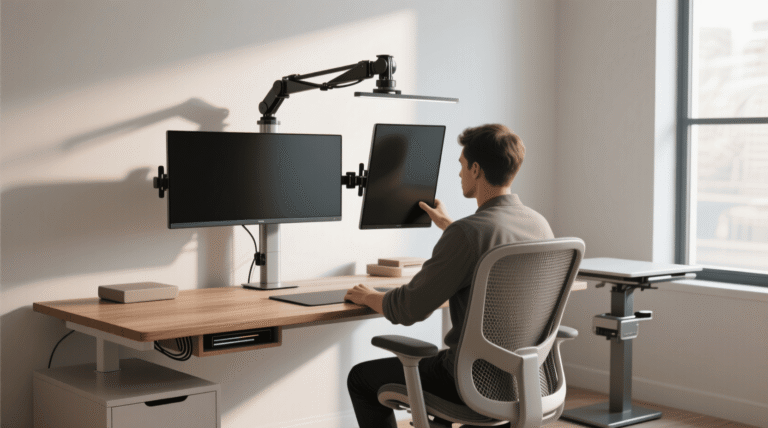
Adjustable Solutions: Monitor arms provide the most flexibility for achieving perfect height positioning. Unlike fixed stands, arms can be adjusted precisely to your body dimensions and preferred viewing angle.
Screen Size Considerations: Larger monitors may need to be positioned slightly lower than smaller ones to maintain comfortable viewing of content across the entire screen. A 32-inch monitor at the same height as a 24-inch monitor will force you to look up to see the top portion.
Optimal Viewing Distance
The ideal viewing distance depends on your monitor size and resolution. For most dual monitor setups, 20-40 inches provides the best balance of comfort and usability. At this distance, you can see both monitors clearly without excessive head movement.
Resolution Impact: Higher resolution monitors can be placed slightly closer without compromising readability, while lower resolution screens may need more distance to prevent pixelation from becoming distracting.
Eye Health Considerations: Following the 20-20-20 rule becomes easier with proper distance—every 20 minutes, look at something 20 feet away for 20 seconds. Having your monitors at the right distance supports this healthy habit.
Hardware Essentials for Ergonomic Setup
Monitor Arms and Mounting Solutions
Investing in quality monitor arms is one of the best decisions you can make for your dual monitor ergonomic setup. Unlike fixed stands, monitor arms provide complete adjustability for height, tilt, swivel, and depth positioning.
Dual Monitor Arms: Look for arms that can support the weight of both monitors while providing independent adjustment for each screen. This allows for fine-tuning that accommodates different monitor sizes or usage patterns.
Desk Clamp vs. Grommet: Clamp-style mounts work with most desks and don’t require permanent modification. Grommet mounts provide a cleaner look but require a hole in your desk surface.
Gas Spring Technology: Arms with gas springs offer smooth, effortless adjustment that encourages you to optimize positioning regularly rather than settling for “good enough.”
Desk Requirements and Considerations
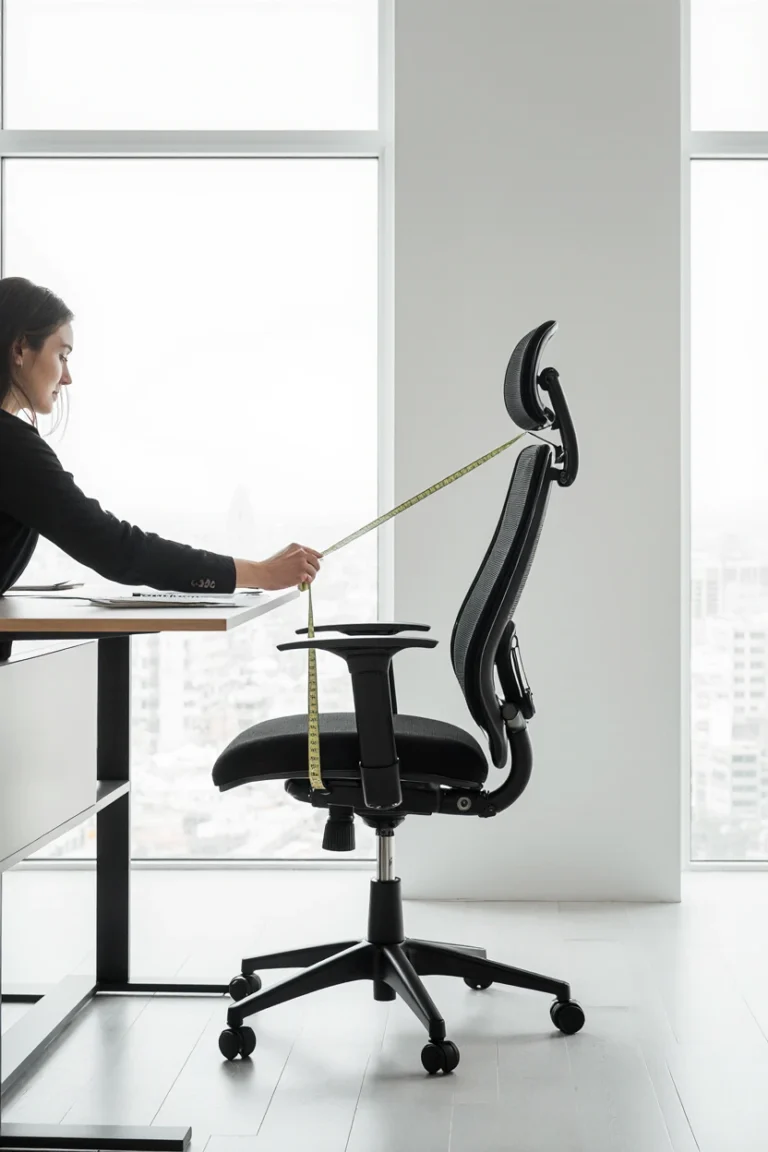
Your desk forms the foundation of your ergonomic setup. We recommend at least 55 inches wide and 30 inches deep to ensure you have enough arm space to maintain a proper posture.
Depth Requirements: Sufficient desk depth is crucial for maintaining proper viewing distance while having space for keyboards, mice, and other accessories. Shallow desks force you to sit too close to your monitors.
Surface Stability: Dual monitor setups add significant weight to your desk surface. Ensure your desk can handle the load without sagging or wobbling, which can affect monitor stability.
Cable Management: Plan for cable routing from the beginning. Dual monitor setups involve more cables, and poor cable management can create clutter that interferes with ergonomic positioning.
Chairs and Supporting Furniture
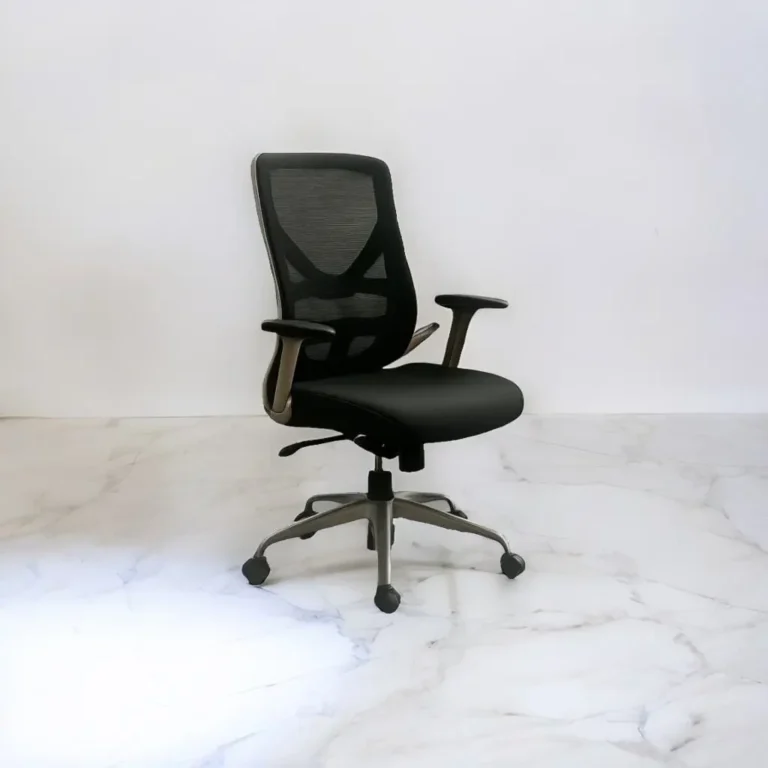
Your chair plays a crucial role in maintaining proper posture for dual monitor use. An ergonomic chair that supports your spine’s natural curves helps you maintain the neutral position necessary for comfortable dual monitor viewing.
Lumbar Support: Proper lower back support helps maintain the upright posture needed for optimal monitor viewing angles. Without adequate lumbar support, you may slouch forward, bringing your head too close to the screens.
Armrest Positioning: Adjustable armrests should support your arms at a height that keeps your shoulders relaxed while typing. This prevents the forward head posture that commonly develops with poor arm support.
Software and Configuration Tips
Display Settings Optimization
Proper software configuration can significantly impact the ergonomic benefits of your dual monitor setup. Most operating systems offer extensive customization options for multi-monitor configurations.
Resolution Matching: When possible, use monitors with matching resolutions to ensure consistent scaling and text size across screens. Mixed resolutions can cause eye strain as you adjust to different text sizes.
Scaling Considerations: Adjust scaling settings so that text and interface elements appear at comfortable sizes on both monitors. What looks good on one screen may be too small or too large on another, particularly with different monitor sizes.
Color Calibration: Matched color profiles between monitors reduce eye strain when moving between screens. Significant color differences force your eyes to constantly readjust.
Workspace Organization
Virtual Desktop Management: Use virtual desktop features to organize applications across your dual monitor setup efficiently. This reduces window switching and helps maintain focus.
Window Snapping: Master keyboard shortcuts for window management. Being able to quickly snap windows to specific screen halves or quarters reduces the need for constant mouse dragging and resizing.
Application-Specific Layouts: Configure your most-used applications to remember their preferred screen and position. This consistency reduces setup time and maintains optimal ergonomic positioning.
Common Mistakes and How to Avoid Them
Positioning Errors
Off-Center Primary Monitor: One of the most common mistakes is positioning the primary monitor to one side rather than directly in front. This forces constant neck rotation toward your dominant screen.
Mismatched Heights: This can be a challenge when using monitor risers, especially when they are attached to the document holder and it can not be adjusted to the position needed. Uneven monitor heights create visual discontinuity and force constant eye readjustment.
Excessive Separation: Placing monitors too far apart increases head movement and reduces the seamless experience that makes dual monitors valuable.
Hardware Selection Mistakes
Inadequate Monitor Arms: Choosing arms that can’t support your monitor weight or don’t provide sufficient adjustment range limits your ability to achieve optimal positioning.
Ignoring Desk Constraints: Not considering your desk’s size, thickness, and structural capacity can lead to unstable mounting or cramped workspace conditions.
Mismatched Monitor Sizes: While different sized monitors can work, significant size differences create ergonomic challenges and visual inconsistencies.
Advanced Setup Configurations
The Best Dual Monitor Setup – 2025 Guide Configurations
Programmer’s Paradise: For coding work, consider a vertical monitor for reading long code files alongside a horizontal monitor for editing. This configuration maximizes code visibility while maintaining comfortable viewing angles.
Content Creator’s Command Center: Video editors benefit from a large primary monitor for timeline work with a secondary monitor for project assets, color scopes, or communication tools.
Financial Trader Setup: Multiple equal-sized monitors in a slight curve configuration provide comprehensive market monitoring while maintaining ergonomic positioning principles.
Gaming and Entertainment Considerations
While primarily focused on productivity, many users need their dual monitor setup to accommodate gaming and entertainment. If you prefer a more traditional approach, monitor stands (especially adjustable ones) still do a solid job of positioning your screens at eye level to support better posture.
Gaming-Specific Positioning: Gaming often benefits from the primary monitor being perfectly centered, with secondary monitors used for communication, streaming software, or reference materials.
Mixed Usage Optimization: For setups that need to excel at both work and play, prioritize positioning for your most frequent use case while ensuring quick adjustability for other activities.
Health and Wellness Benefits
Short-Term Comfort Improvements
Proper dual monitor ergonomics provide immediate benefits in daily comfort and productivity. Users typically notice reduced neck strain, decreased eye fatigue, and improved focus within days of optimizing their setup.
Reduced Eye Movement: Well-positioned dual monitors minimize the extreme eye movements that contribute to digital eye strain. Your eyes can comfortably scan between screens without strain.
Improved Posture: When monitors are positioned correctly, your body naturally maintains better posture throughout the day, reducing muscle tension and fatigue.
Long-Term Health Benefits
The ergonomic benefits of proper dual monitor setup extend far beyond daily comfort. Consistent good posture helps prevent the development of chronic conditions associated with poor workplace ergonomics.
Musculoskeletal Health: Proper positioning prevents the muscle imbalances that can develop from consistently favoring one side or maintaining poor neck posture.
Eye Health: Appropriate viewing distances and angles reduce the risk of developing computer vision syndrome and other screen-related eye problems.
Troubleshooting Common Issues
Neck Strain and Stiffness
If you’re experiencing neck discomfort with your dual monitor setup, the issue is usually positioning-related. Check that both monitors are at proper height—your gaze should naturally fall on the top third of each screen when sitting comfortably.
Quick Fixes: Adjust monitor height, reduce the gap between monitors, and ensure your chair provides adequate support. Consider taking regular breaks to stretch and reset your posture.
Professional Assessment: Persistent neck pain may require professional ergonomic assessment to identify specific postural issues or workspace modifications needed.
Eye Strain and Fatigue
Digital eye strain often results from poor viewing distances, inadequate lighting, or mismatched display settings between monitors.
Immediate Solutions: Verify 20-40 inch viewing distance, adjust brightness to match ambient lighting, and ensure color settings are consistent between monitors.
Environmental Factors: Consider lighting conditions, screen glare, and humidity levels that might contribute to eye discomfort.
Productivity Challenges
If your dual monitor setup isn’t improving productivity as expected, the issue might be organizational rather than physical.
Workflow Optimization: Review how you’re using each monitor and adjust positioning to match your actual usage patterns rather than theoretical ideals.
Software Solutions: Implement window management tools and keyboard shortcuts to maximize the efficiency of your dual monitor workflow.
Future-Proofing Your Setup
Emerging Technologies
As display technology evolves, consider how current setup decisions might accommodate future upgrades. USB-C monitors with daisy-chaining capabilities, higher resolution displays, and curved monitors all impact ergonomic considerations.
Modular Approach: Choose mounting solutions and desk configurations that can adapt to changing monitor sizes and technologies rather than being locked into current specifications.
Investment Planning: Quality monitor arms and ergonomic furniture represent long-term investments that can accommodate multiple generations of display upgrades.
Adaptive Ergonomics
The best dual monitor setup is one that can adapt to changing needs, work patterns, and physical conditions over time.
Regular Reassessment: Periodically review your setup to ensure it still meets your needs as work patterns, physical condition, or technology requirements change.
Flexibility Priority: Prioritize adjustable solutions over fixed configurations to maintain optimal ergonomics as circumstances evolve.
Frequently Asked Questions
Q: What’s the ideal distance between two monitors in a dual monitor ergonomic setup? A: Monitors should be placed as close together as possible while maintaining their individual bezels. Typically, this means just the width of the monitor frames separating the screens to minimize neck movement and create visual continuity between displays.
Q: Should both monitors be the same size for optimal ergonomic positioning? A: While matching monitor sizes simplify ergonomic setup, different sizes can work if positioned correctly. The key is maintaining equal top edges and ensuring both screens are within comfortable viewing angles. Choose a monitor size of 19-inch + for your best chances of avoiding neck and shoulder problems.
Q: How do I prevent neck strain when using two monitor desk layout for extended periods? A: Position your primary monitor directly in front of you, keep both monitors at eye level, and maintain 20-40 inches viewing distance. Take regular breaks to stretch and avoid static postures. Consider alternating which monitor serves as your primary focus throughout the day.
Q: Can I use different resolutions on each monitor in an ergonomic dual monitor setup? A: Yes, but try to maintain consistent scaling so text and interface elements appear similar sizes on both screens. Different resolutions can cause eye strain if the size differences are too dramatic, requiring constant visual adjustment.
Q: What’s the most important hardware investment for dual monitor ergonomics? A: Quality monitor arms provide the most ergonomic benefit by enabling precise positioning adjustment for height, angle, tilt, and depth. This adjustability is crucial for achieving optimal positioning that matches your specific body dimensions and workspace constraints.
Looking to complete your ergonomic workspace? Check out our guides on ergonomic workstation setups, cable management organization, and top ergonomic chairs for comprehensive workspace optimization.