Physical Address
304 North Cardinal St.
Dorchester Center, MA 02124
Physical Address
304 North Cardinal St.
Dorchester Center, MA 02124

Find Gear. Build Dreams. Game On.
Find Gear. Build Dreams. Game On.
There are hundreds of game booster apps on the Play Store. Most of them are garbage. Seriously — flashy icons, fake RAM meters, and zero real impact on your actual gameplay.
I’ve spent a significant amount of time testing apps across different Android devices — budget phones, mid-rangers, and flagships — to find the ones that genuinely make a difference. If you want the best game booster apps for Android 2026 (and what’s still working in 2026), this is the only list you need. No filler, no paid promotions, no apps that someone paid me to include. Just honest takes from someone who actually plays.
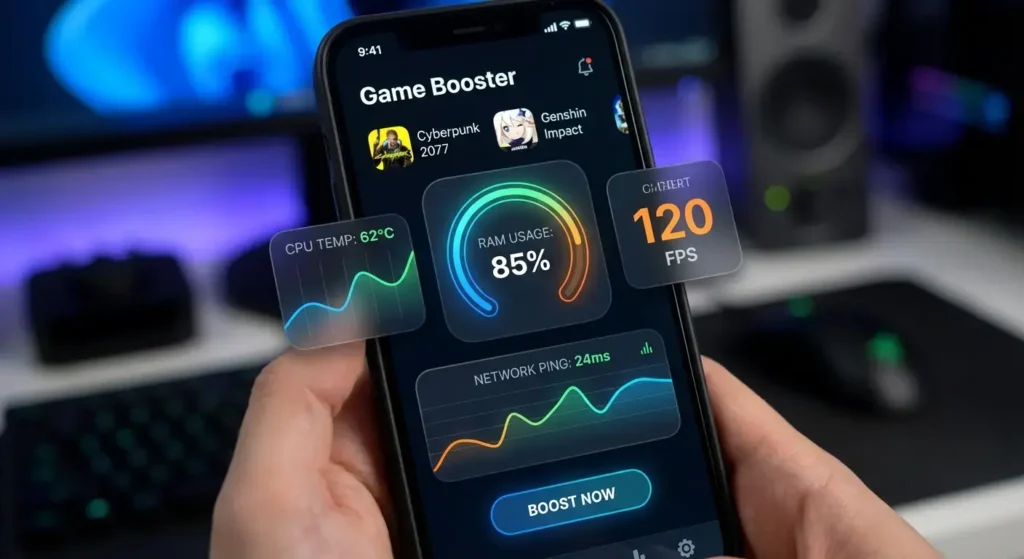
Before we jump into the list, I want to be straight with you about something. A lot of game booster apps on the Play Store do absolutely nothing. They show you an animation, tell you they “boosted” your phone, and you feel like something happened. Nothing happened.
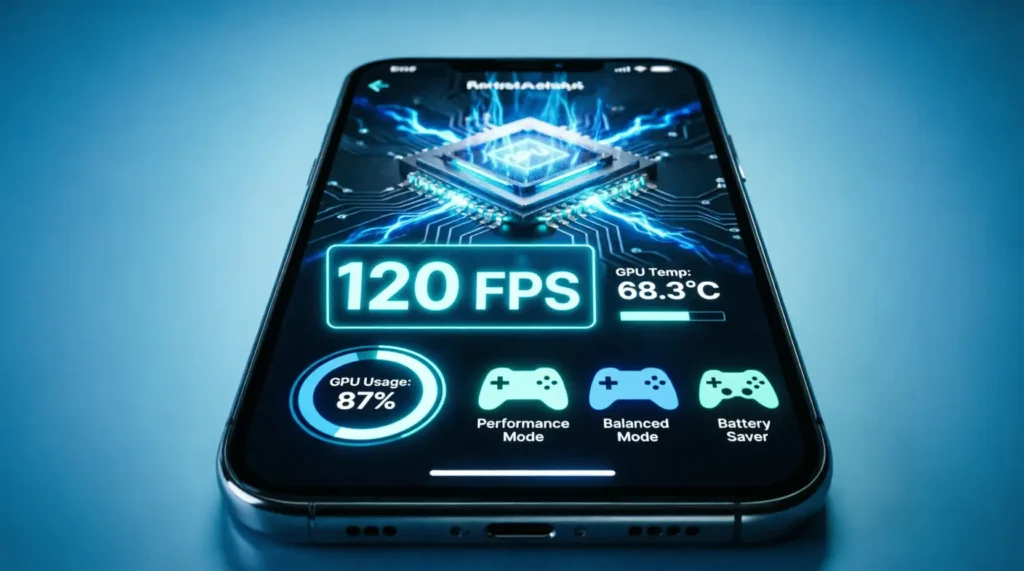
The apps that genuinely work share a few key features. First, they actually close or restrict background processes — not just pretend to. Second, they block notifications and incoming calls during gameplay, so your session doesn’t get interrupted at the worst moment. Third, the good ones let you set performance profiles per game, so your casual puzzle game runs in battery mode while your battle royale gets every ounce of CPU your phone has. Fourth, thermal monitoring is a feature most people ignore, but shouldn’t — knowing your phone is hitting dangerous temperatures lets you react before throttling kills your FPS mid-match. Fifth, for online gamers, network optimization that actually prioritizes game traffic over background syncing and updates can make a real difference in ping stability.
The apps that have most of these features are the ones worth your storage space. The ones that just show you a fake “cleaning” animation with no real backend process? Delete them. They’re wasting space and potentially running their own background processes that make things worse.
One more thing before we start: built-in manufacturer game modes almost always beat third-party apps for general performance boosting. If your phone has one, that’s your foundation. Third-party apps are best used to supplement with specific features your built-in mode doesn’t have — like GFX unlocking for specific games, or dedicated network optimization.
I’ve split these into tiers based on my actual testing and experience. Within each tier, I’ve gone deeper on what each app does, where it excels, and who it’s actually best for. No padding, just real info.
If you’re on a Samsung, this is already installed, and it’s genuinely excellent. Game Booster in One UI blocks calls and notifications the moment you launch a game, monitors your CPU and GPU temperature in real time, limits background data usage, and has a Labs section with experimental performance tweaks that Samsung quietly updates with each One UI version. The floating toolbar gives you quick access to screenshots, screen recording, and performance stats without leaving your game. Honestly, most Samsung users don’t need anything else. The built-in integration means it works more efficiently than any third-party app could on Samsung hardware.
One of the best manufacturer game modes on any Android phone, period. Game Turbo gives you a floating sidebar you can pull out mid-game without interrupting anything, automatic RAM cleanup when you launch a supported game, network prioritization that routes game traffic ahead of background app syncing, and a dedicated performance mode that runs the Snapdragon or MediaTek chip at higher sustained frequencies. The newer versions also added a “Dual WiFi Acceleration” feature on supported devices that combines WiFi and mobile data for more stable online connections. If you’re on a Xiaomi or POCO device, use this. It’s free, it’s built in, and it’s better than 90% of what’s on the Play Store.
The most feature-rich built-in game mode on any Android device. ASUS built Armoury Crate specifically for gaming phones, and it shows — you get hardware-level control that third-party apps simply can’t access. On ROG phones, you can control the fan speed directly, which is something no other Android phone offers. X Mode activates when you need maximum performance and kills everything non-essential. Per-game profiles let you set exactly how your phone behaves in each title. The AirTrigger sensitivity can be adjusted per game. If you have an ROG Phone, this is your entire gaming setup in one app. Nothing else is needed.
This one surprises people. The updated Google Play Games app has quietly become a solid Android game performance booster, especially for Play Games-integrated titles. It manages background processes for supported games, provides a clean gaming interface, and the performance overlay shows real-time stats. It’s lightweight, doesn’t run heavy background processes of its own, and integrates naturally with Android. For casual to mid-core gamers who play titles from the Play Games catalog, this is worth having active.
The best general-purpose third-party booster I’ve tested. It actually closes background processes in a meaningful way rather than faking it, supports a 60+ FPS unlock mode for compatible devices, blocks notifications cleanly, and has a straightforward interface that doesn’t bury features in menus. The 4x in the name is marketing fluff — you won’t get 4x the performance — but the actual background cleanup and RAM management are real and effective. Works well across a wide range of Android versions and doesn’t require excessive permissions. The free version is functional without being crippled.
A solid mid-tier option that does genuine background process cleanup with a gaming-focused interface. The game-specific optimization profiles work better than I expected for a free app. It identifies which apps are consuming the most RAM and lets you selectively close them rather than doing a blanket kill that might close something you actually need. The free version shows ads, but they’re not aggressive during gameplay. Works particularly well on phones in the 4–6GB RAM range, where every freed megabyte counts.
This one stands out for its per-game profile system and the floating toolbar that actually stays out of your way during play. You can set different optimization levels for different games — running your competitive shooters at max performance while keeping your idle games in a power-saving profile. The performance improvements are modest but consistently real across the devices I tested them on. Not going to transform a $100 phone, but it makes a measurable difference on mid-range devices where optimization headroom exists.
Razer’s entry into the mobile booster space. It does RAM cleanup, blocks notifications, provides a performance overlay with FPS counter and temperature readings, and has a game library that launches titles in optimized mode automatically. The results vary more device-to-device than I’d like — on some phones it’s noticeably effective, on others the impact is minor. Works best on phones with Snapdragon chips. The interface is clean, and the FPS counter alone is worth having if you like monitoring your performance stats in real time.
This is not a general game booster — it’s a specialized tool for PUBG Mobile and Battlegrounds Mobile India specifically. What it does is unlock higher graphics tiers and FPS caps that the game artificially restricts on certain devices. Want to run 90 FPS or Smooth + Extreme settings on a phone, PUBG says it can only handle Balanced? This is how. It works by modifying game configuration files before launch. Use it carefully and don’t push settings too far beyond what your hardware can handle, but for PUBG and BGMI players, this is essentially a must-have. The performance gains from unlocking the right settings for your device are significant.
Same concept as the PUBG version, but built specifically for Garena Free Fire. Unlocks 90 FPS on devices that support it but have the option hidden, lets you adjust render resolution and shadow quality independently, and can reduce graphics load without touching the game’s built-in settings. Free Fire players on mid-range devices get a lot out of this because the game has more unlockable headroom than most realize. Stable and regularly updated to keep pace with Free Fire’s own updates.
The third in the GFX series, this one targets Call of Duty: Mobile. Similar functionality — unlocks frame rate options and graphics tiers that COD Mobile hides on budget and mid-range devices. One note of caution: pushing settings too aggressively here can cause crashes or trigger anti-cheat flags in some cases, so start conservative and work up from there. Used carefully, it’s a genuine FPS booster for COD Mobile players who are hitting artificial performance ceilings.
A clean, stable app that does background app management without trying to do too much. The interface is simple, it doesn’t crash, and it doesn’t ask for a suspicious number of permissions. Nothing groundbreaking about what it does, but it does it reliably. Good pick if you’ve tried fancier apps that felt unstable or intrusive and just want something that works quietly in the background.
An interesting hybrid that combines general game boosting with GFX unlocking for multiple titles in one app. It’s a jack of all trades — not the deepest on any individual feature, but convenient if you play several different games and want one app handling everything. The GFX unlocking covers the major titles (PUBG, Free Fire, COD Mobile, Mobile Legends), and the booster side does solid background cleanup. Regular updates keep it current with new game releases.
The Pro version is worth paying for here. The DNS optimization is better than most apps in this category, and the reduction in online game lag is noticeable — not placebo, actually measurable in ping. Good for battle royale players and anyone who plays online-heavy titles where network stability matters as much as raw FPS. The background cleanup is also solid. One of the better premium options that justifies the cost.
Focused specifically on RAM management rather than trying to be an all-in-one solution. It identifies exactly which processes are consuming memory and lets you free them intelligently. Not the most exciting app on this list, but pairs really well with any of the other boosters here — use something else for game mode features and use Memory Cleaner to handle RAM before you launch. Lightweight, minimal battery impact, does what it says.
Pure network optimization, no gaming mode fluff. If your frame rate is totally fine but your online gameplay feels laggy, this is likely the culprit — your network traffic isn’t being prioritized properly. Net Optimizer switches between DNS servers to find the fastest one for your location, optimizes mobile data routing, and reduces the background network noise that adds to your ping. Specifically useful for players in regions where server routing isn’t great. Free version covers the basics well.
Combines the network optimization approach of Net Optimizer with GFX unlocking, which is a genuinely useful pairing for online game players. You’re fixing both FPS headroom and network performance in one app. Results vary by game and region, but the combination approach makes it worth trying if lag and graphics settings are both issues for you.
Uses a VPN-style tunnel to route game traffic through optimized servers. It’s not a traditional VPN — it only routes game traffic, not all your internet data — which means it doesn’t slow down your general browsing while active. Helps with ping in specific regions and for games with limited server locations. The free version has limited server options but is functional enough to tell you whether the approach works for your connection before committing to a subscription.
A lightweight option that does simple background process cleanup and notification blocking. No fancy features, no complex settings, no intrusive ads during gameplay. Just turns on, cleans up, and gets out of your way. Good for players who don’t want to think about optimization — they want something that runs automatically when they launch a game and doesn’t need babysitting.
Gives you some basic CPU management without requiring root, which is impressive given how locked down CPU controls usually are on unrooted Android. The results vary significantly by device — some phones respond well to its frequency adjustments, others show minimal change. Worth testing on your specific device since it costs nothing, and the performance ceiling when it does work well is higher than most apps in this range.
The name oversells it, but there’s something real underneath. The FPS stabilizer feature — which focuses on keeping frame pacing consistent rather than increasing peak frame rate — actually works on several devices I tested. Consistent 55-58 FPS often feels smoother than 60 FPS with drops to 40, and that’s what this app targets. If your problem is inconsistent frame timing rather than low average FPS, this addresses it better than most apps do.
Simple, unobtrusive, stable. Doesn’t try to do anything revolutionary. Blocks notifications, closes some background apps, and provides a clean launch interface for your game library. The kind of app that just works without drama. Good if you’ve had bad experiences with more aggressive boosters that caused crashes or weird behavior.
This is a different category altogether — Phoenix OS is a full Android desktop environment primarily for x86 hardware, but its gaming mode for mouse and keyboard setups is genuinely unmatched for players who want that setup. If you’re playing mobile games on an Android-based desktop environment, this is the best option. For standard smartphone use, it’s not relevant, but for the niche that needs it, nothing else comes close.
Leans more into the cleaner side than active game mode features. Focuses on junk file removal, app cache clearing, and RAM freeing between sessions. Think of it as pre-game preparation rather than an active performance booster. Used regularly before gaming sessions, it keeps your phone from accumulating the kind of background clutter that slowly degrades performance over time. Solid companion to a more feature-rich game mode app.
One of the most technically powerful apps on this list. GLTools lets you override GPU rendering settings at the per-app level — forcing lower internal rendering resolutions, changing texture filtering, adjusting anti-aliasing, and more. Works best on Adreno and Mali GPUs. Not for beginners — if you don’t know what you’re changing, you can make games look worse or cause crashes. But for experienced users who know their hardware, the performance gains from reducing GPU load intelligently are significant. One of the few apps that can genuinely boost FPS on games that don’t have graphics settings of their own.
Does what the name says — focuses on temperature management during gaming. Monitors CPU and GPU temps, identifies which apps are generating the most heat, and helps manage thermal load to reduce throttling. Not a magic solution for a phone that runs hot, but it can delay the onset of thermal throttling by managing background heat sources, which extends your high-performance window during long sessions.
Not marketed as a game booster, but incredibly useful for gamers. Gives you a customizable floating button overlay that can trigger shortcuts — including background process cleanup, brightness adjustment, and volume control — without leaving your game. Players with smaller phones who struggle to reach controls find this especially useful. Combine it with any of the above boosters for a complete setup.
A diagnostic tool more than a booster, but invaluable for understanding what’s actually running on your phone and killing your gaming performance. Shows you every active process with RAM and CPU usage in real time. Use it to identify the specific apps that are hurting your game, then either close them manually or configure your main booster to target them. Knowledge is half the battle with Android optimization.
Battery optimization that actually benefits gaming. BatteryGuru learns your usage patterns and adjusts background app behavior accordingly — restricting apps during gaming sessions when it detects sustained performance demand. Over time, it gets smarter about what to restrict and when. Doesn’t show immediate results as a RAM cleaner does, but after a week of use, the sustained performance improvement is real.
Another diagnostic tool that every serious mobile gamer should know about. GameBench measures and records your actual FPS, frame time, CPU usage, and RAM usage during gameplay. It gives you hard data on how any optimization change actually affects your performance, so you stop guessing. Use it to test before and after making any changes — whether that’s enabling a booster, changing graphics settings, or clearing cache. Makes every other tool on this list more useful because you can measure what’s actually working.
Here’s a side-by-side view of the top 15 apps so you can compare at a glance and pick what fits your situation:
| App | Free? | Background Cleanup | Network Optimization | GFX Unlock | Best For |
| Samsung Game Booster | Built-in | Yes | Yes | No | Samsung users |
| Xiaomi Game Turbo | Built-in | Yes | Yes | No | Xiaomi/POCO users |
| ASUS Armoury Crate | Built-in | Yes | Yes | Partial | ROG phone users |
| Google Play Games | Free | Partial | No | No | Play Games titles |
| Game Booster 4x Faster | Free | Yes | No | No | General use |
| Dr. Booster | Free | Yes | No | No | Budget/mid-range |
| GFX Tool (PUBG/BGMI) | Free | No | No | Yes | PUBG/BGMI players |
| GFX Tool (Free Fire) | Free | No | No | Yes | Free Fire players |
| GFX Tool (COD Mobile) | Free | No | No | Yes | COD Mobile players |
| Razer Cortex: Mobile | Free | Yes | No | No | Performance tracking |
| Anti-Lag Pro | Paid | Yes | Yes | No | Online multiplayer |
| Net Optimizer | Free | No | Yes | No | Ping issues |
| GLTools | Paid | No | No | Yes | Advanced users |
| GameBench | Free | No | No | No | Performance testing |
| Panda Game Booster | Free | Yes | No | Yes | Multi-game users |
Related Articles:
Boost Gaming Performance on Android (2026): Increase FPS & Fix Lag Fast
How to Clear System Cache Partition for Better FPS
Top 20 Best Gaming Phones of 2026
Do game booster apps actually work on Android?
Some genuinely do, most don’t. The ones that work are doing something real in the background — closing processes that eat RAM, blocking interruptions, optimizing how the OS allocates resources to your game. The ones that don’t work are basically showing you an animation and collecting your data. The built-in manufacturer options (Samsung Game Booster, Xiaomi Game Turbo, ASUS Armoury Crate) are consistently the most effective because they have hardware-level access that third-party apps can’t match. Among third-party options, stick to the Tier 1 and Tier 2 picks from this list, and you’ll be in good shape.
Which game booster app is best for low-end Android phones?
For low-end devices, less is more. Your best foundation is the built-in game mode if your phone has one. Add Game Booster 4x Faster or Dr. Booster as a companion for background cleanup. Avoid installing multiple heavy booster apps — on a phone with 3–4GB of RAM, running three booster apps simultaneously is counterproductive because they consume the very RAM you’re trying to free. One solid booster, used correctly, beats five mediocre ones competing with each other.
Is it safe to use third-party game booster apps?
Most of the reputable ones are fine. The red flags to watch for are apps that request permissions they have no reason to need — microphone access, contact list access, SMS permissions. A game booster has no legitimate reason to read your messages. Also, watch for apps that run heavy background services constantly when you’re not actively gaming. Check your battery stats after a few days of use — if a booster app is appearing as a top battery consumer when you haven’t been gaming, it’s doing something it shouldn’t be. The apps in this list are generally safe, but always check permissions before installing anything.
Can a game booster fix lag in online games?
Device-side lag, yes — background cleanup and RAM management directly reduce the stutter and slowdowns caused by your phone struggling to keep up. Network lag is a different story. For ping-related issues, you need a network-specific tool like Net Optimizer or Anti-Lag Pro rather than a general game booster. And if the lag is coming from the game’s own servers being overloaded, nothing on your device can fix that.
Do I need a third-party game booster if my phone already has Game Mode built in?
For general performance boosting, probably not. Manufacturer game modes are optimized for your specific hardware and software stack in ways third-party apps can’t replicate. Where third-party apps add real value is in areas your built-in mode doesn’t cover — GFX unlocking for specific games, dedicated network optimization, or detailed performance monitoring with something like GameBench. Use your built-in mode as the foundation and add specific third-party tools only for the gaps it doesn’t fill.
After testing all of these, my honest takeaway is this: the best game booster for most people is already on their phone. Samsung Game Booster, Xiaomi Game Turbo, and ASUS Armoury Crate outperform everything else in this list for their respective devices because they have access that third-party apps simply don’t. If you’re on one of those brands and you haven’t enabled your built-in game mode, do that first — right now, before you download anything else.
For everyone else, Game Booster 4x Faster is my top third-party pick for general use, the GFX Tool series is essential if you play PUBG, Free Fire, or COD Mobile, and Net Optimizer or Anti-Lag Pro are the moves if ping is your main enemy. Everything beyond that is situational — match the tool to the specific problem you’re having.
The biggest mistake I see mobile gamers make is downloading five booster apps, hoping the combination works better. It doesn’t. Pick one solid general booster, add a specific tool if you need GFX unlocking or network optimization, and call it done. Keep it simple, keep it clean, and actually go enjoy your games.






[…] 30 Best Android Game Booster Apps That Actually Work (2026) […]
[…] 30 Best Android Game Booster Apps That Actually Work (2026) […]